-
Pulse Dashboard

The dashboard gives you an overview of what’s happening on the server selected. It can be split into 5 sections:
-
Pulse Login

In this article, we explain how to access Pulse and how to navigate through Pulse features.
-
Using SSL With Pulse
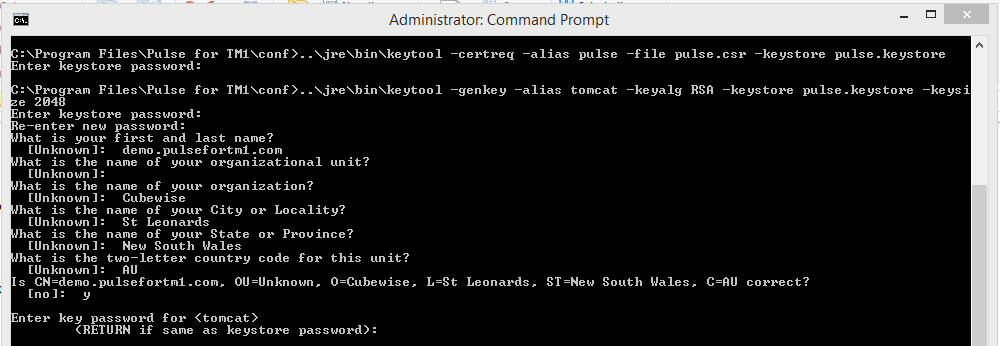
To enable SSL with Pulse, there are three main steps:
-
Optimizing Pulse 6 in a large environment

This article explains some tips to optimize Pulse performance in a large environment (10+ TM1 instances).
-
Pulse About

There are lots of valuable information in the Pulse About section starting with the Pulse version number from the top left corner:
-
Pulse Help

In the Pulse Help section, you will find a link to:
-
Pulse Administration

Under Administration, you will find all configuration settings:
-
Pulse Explorer

The Pulse Explorer is a new visualization tool introduced with Pulse v6. Starting with v6, Pulse is storing everything that is happening across all servers and IBM Planning Analytics (TM1) instances in an embedded Pulse Elasticsearch cluster. All this data can then be easily retrieved with the Pulse Explorer powered by Kibana. To learn more…
-
Pulse Performance

Just like a doctor visit, your current weight blood pressure and other health metrics are important, but they must also be compared to a historical baseline in order to be truly meaningful. Sudden increases or decreases in weight provide much more information than what your weight is Right Now.
-
Pulse User Analytics
Pulse keeps track of every user’s sessions, what they are doing in Excel, TM1 Web and Canvas: